BTS: Odoo Selector Pro
Your Odoo control center inside PyCharm. Switch databases and manage modules without the usual hassle.
- Switch databases instantly - no config editing, just restart and go.
- Manage modules faster - search, install, update, test - all in one place.
- Generate run configs in one click - no guessing, just works.
👉 Documentation looks much better in browser (JetBrains rendering is limited): https://bts-odoo-selector.com/
✅ Quick 3-Step Setup:Follow the guided instructions in the Easy Install section.
- Configure your fetch database command.
- Auto-Generate BTS Run Configurations.
- Adjust the newly created Run Configurations.
Official Music Video

What’s Inside
- Database Selector
- Module Selector
- Test Selection
- Run Configurations
- Easy Install
- Braintec Automation - Braintec Exclusive
- Context Menu - Braintec Exclusive
- Custom Integration
Links
Database Selector
Use the $BTSDatabase$ and $BTSDatabaseWithD$ macros directly in your Run Configurations for seamless database switching. Alternatively, the tool can update the db_name in your odoo.conf.
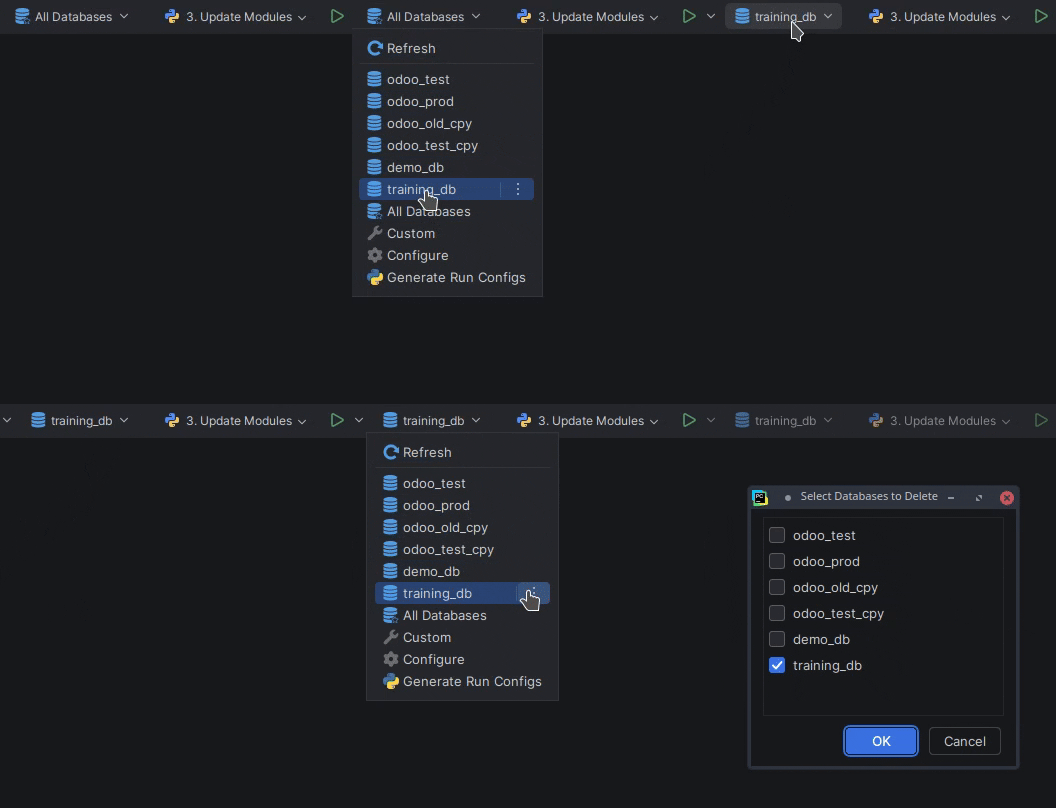
- Refresh – Auto-updates on startup and config changes. Manual refresh needed after database operations.
- Database – Use the
$BTSDatabase$or$BTSDatabaseWithD$macros in your Run Configuration for dynamic switching, or choose to automatically update thedb_namein yourodoo.conf.Delete– Automatically configured for Braintec, PwC, and Ventortech.Duplicate/Rename– Braintec exclusive.
- All Databases – Showing all databases.
- Custom – Enter a
db_nameand run your install config to spin up a fresh database. - Configure – Advanced settings and automation:
Fetch / Drop Databases– Commands to fetch or delete databases (Auto-configured for partner environments).Path to odoo.conf– Set a custom path for your configuration file (Auto-configured for Braintec, PwC, and VentorTech).Predefined Databases– Set up your own list of go-to database names.
💡 Pro Tip:
- Left-Click: Start typing to find your database.
- Middle-Click: Fold.
- Ctrl + Click or Ctrl + Enter: Open the query console for the database. Uses the first available database connection, refreshes its database list, and syncs the schema for the clicked database.
- Alt + Click or Alt + Enter: Copy database name to clipboard.
- Ctrl + Alt + \: To activate.
Module Selector
Scans your repositories and lets you pick modules to install, update, or test. Selected modules are injected into Run Configurations via macros $BTSModules$, $BTSModulesWithU$ and $BTSModulesWithI$. Simply create a new Run Configuration (e.g., Update Modules) and use the macro to target your selection.
You can also use the $BTSAddonsPaths$ macro to define a custom addons path by adding --addons-path=$BTSAddonsPaths$ to your Run Configuration.
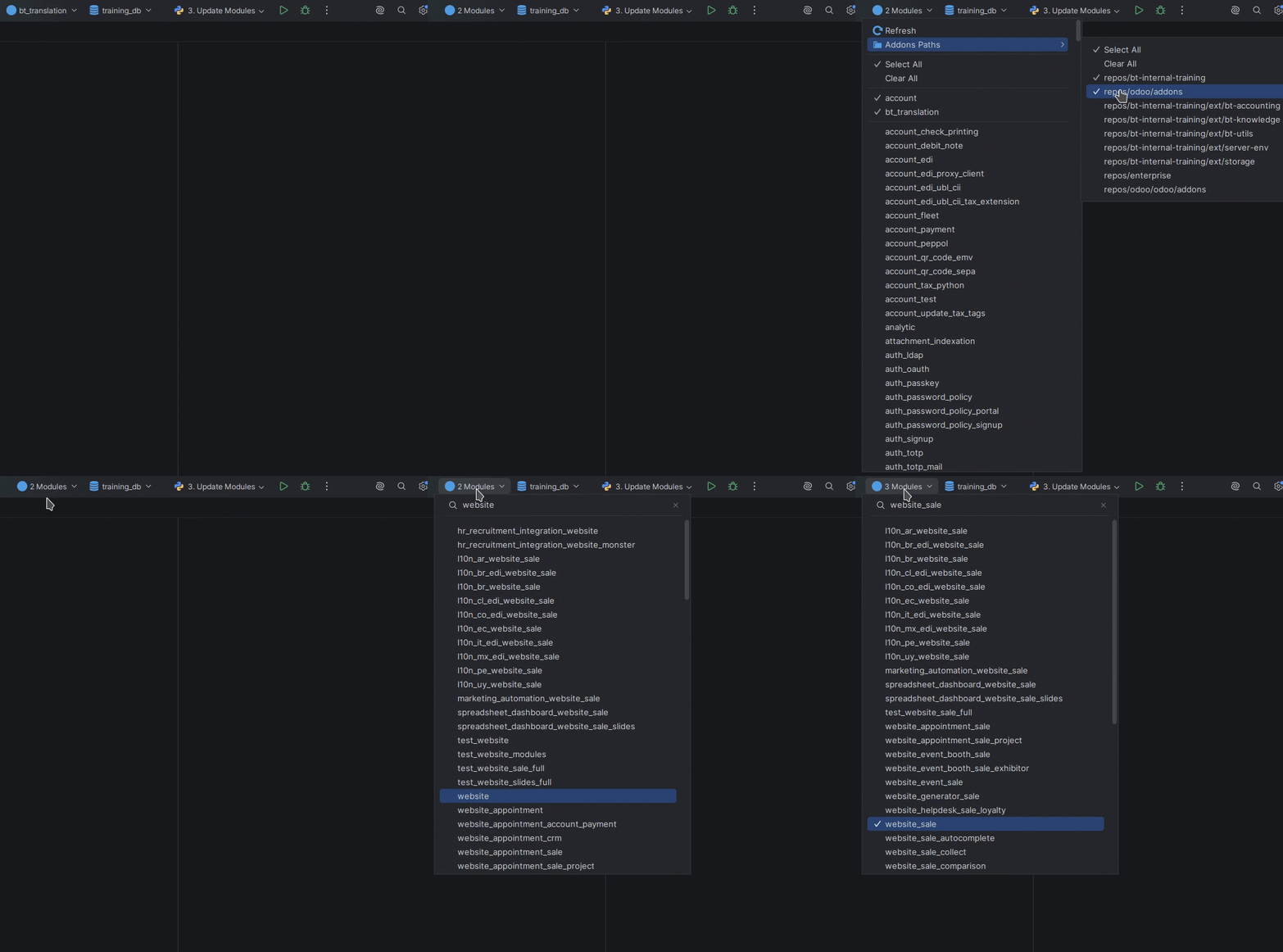
- Refresh – Update the module list anytime. Auto-refreshes on startup.
- Addon Paths – Choose specific repositories to focus your search and utilize them with the
$BTSAddonsPaths$macro. - Module Groups – Create custom sets of modules to toggle multiple items at once. Selecting a group automatically picks all its member modules.
- Module Selection – Pick the modules you need, then reference them in your Run Configuration using
$BTSModules$,$BTSModulesWithU$or$BTSModulesWithI$.
💡 Pro Tip:
- Left-Click: Start typing to find your modules.
- Middle-Click: Fold.
- Right-Click: Show context action.
- Ctrl + Click or Ctrl + Enter: Jump to source.
- Alt + Click or Alt + Enter: Copy module names to clipboard.
- _: Show all modules.
- Ctrl + Alt + Shift + \: To activate.
Test Selection
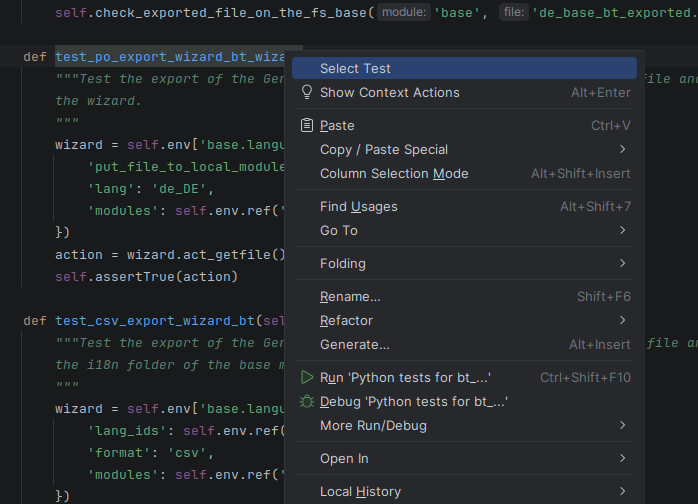
You can select either a unit test or an entire test class, then inject it into your Run Configuration using the $BTSSelectedTest$ macro. Start it with Test Run Configuration.
Run Configurations
Short, ready-to-use command examples for running Odoo. The following configurations utilize these BTS macros:
$BTSDatabase$: Selected database name. If no DB is selected, returnsFalse. (e.g.my_database)$BTSDatabaseWithD$: Returns-d database_name. Empty string if none. (e.g.-d my_database)$BTSModules$: Comma-separated list of selected modules. (e.g.sale,stock,web)$BTSModulesWithU$: Returns-u module,list. Empty string if none. (e.g.-u sale,stock)$BTSModulesWithI$: Returns-i module,list. Empty string if none. (e.g.-i sale,stock)$BTSAddonsPaths$: Absolute paths to selected addon directories. (e.g./path/to/addons)$BTSSelectedTest$: Returns selected test/class with tags. Empty string if none. (e.g.--test-tags /module.test_class)</small>
💡 Pro Tip: You don't always have to use every macro. For example, whether you need `--addons-path` depends on your project setup.
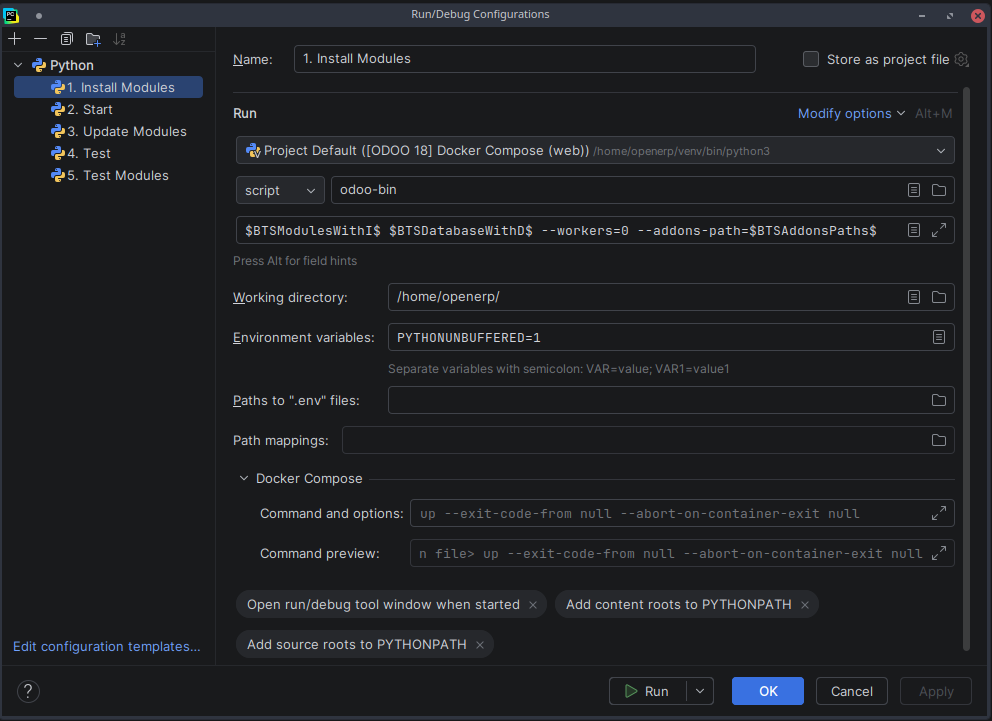
1. Install Modules
Enter a new database name under Custom and pick modules to install to initialize a fresh database with those modules.
$BTSModulesWithI$ $BTSDatabaseWithD$ --workers=0
With addons paths:
$BTSModulesWithI$ $BTSDatabaseWithD$ --workers=0 --addons-path=$BTSAddonsPaths$
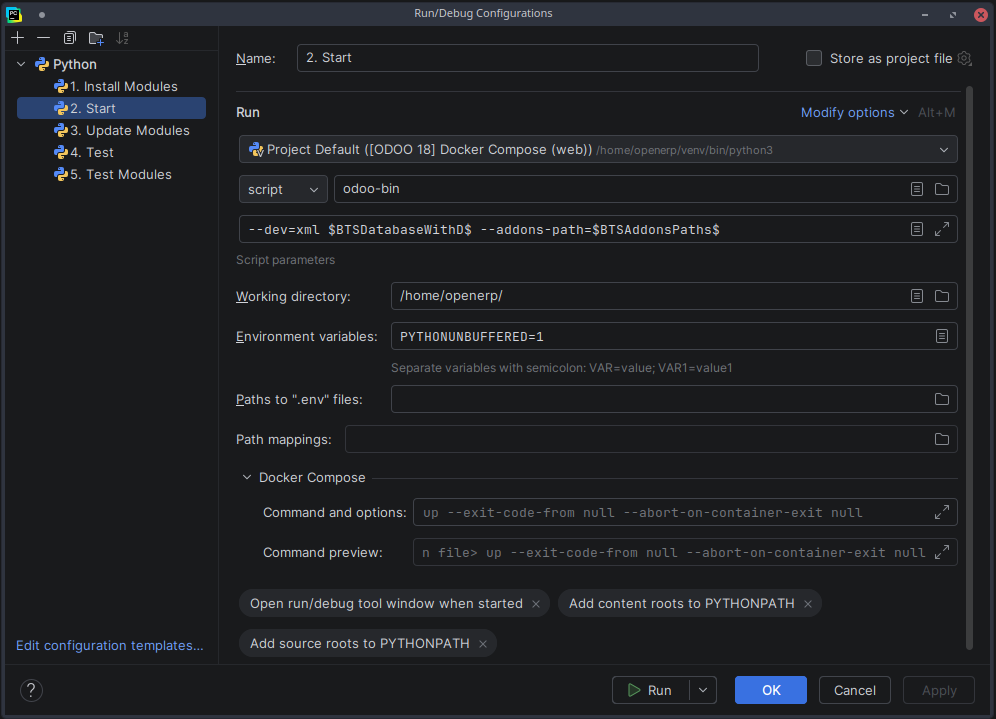
2. Start
Standard command to start Odoo with the selected database.
--dev=xml $BTSDatabaseWithD$
With addons paths:
--dev=xml $BTSDatabaseWithD$ --addons-path=$BTSAddonsPaths$
3. Update Modules
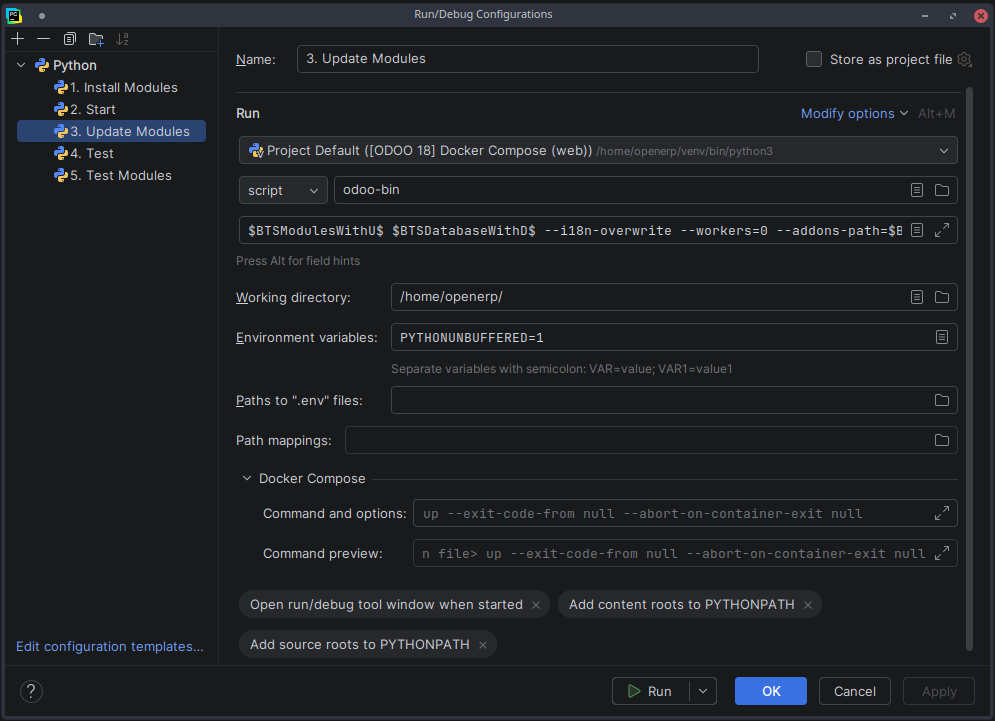
Select the modules to update, pick your database, and run. It’s the easiest way to apply your latest code changes to the database.
$BTSModulesWithU$ $BTSDatabaseWithD$ --i18n-overwrite --workers=0
With addons paths:
$BTSModulesWithU$ $BTSDatabaseWithD$ --i18n-overwrite --workers=0 --addons-path=$BTSAddonsPaths$
4. Test
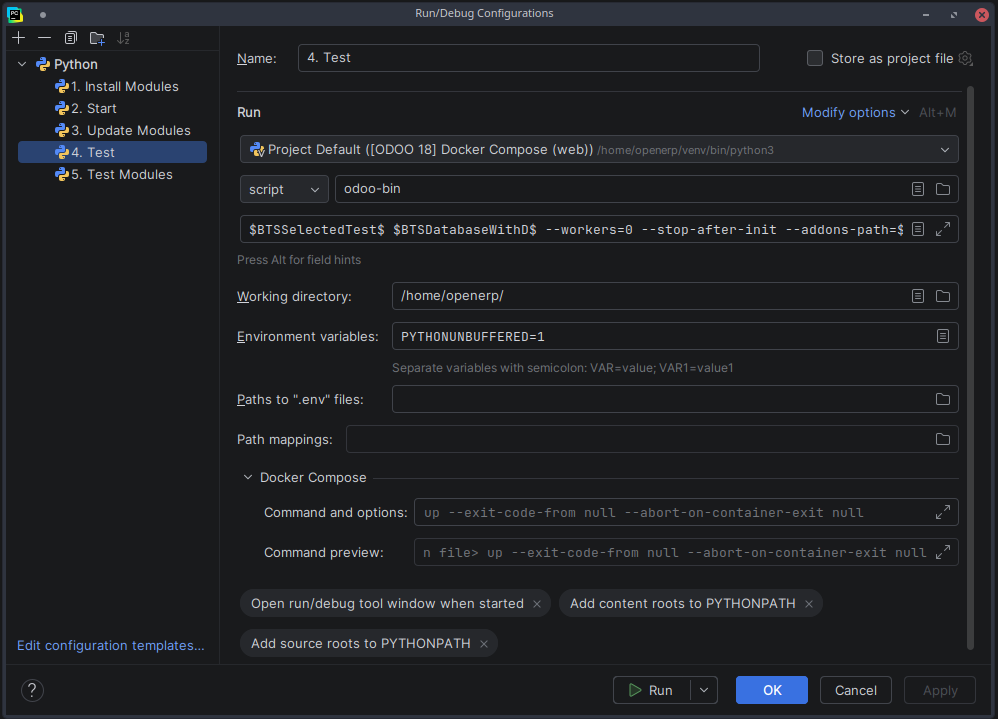
Use this configuration to run a single test method or a single test class.
Right-Click on a test method or class, select your database, and run the tests.
$BTSSelectedTest$ $BTSDatabaseWithD$ --workers=0 --stop-after-init
With addons paths:
$BTSSelectedTest$ $BTSDatabaseWithD$ --workers=0 --stop-after-init --addons-path=$BTSAddonsPaths$
5. Test Modules
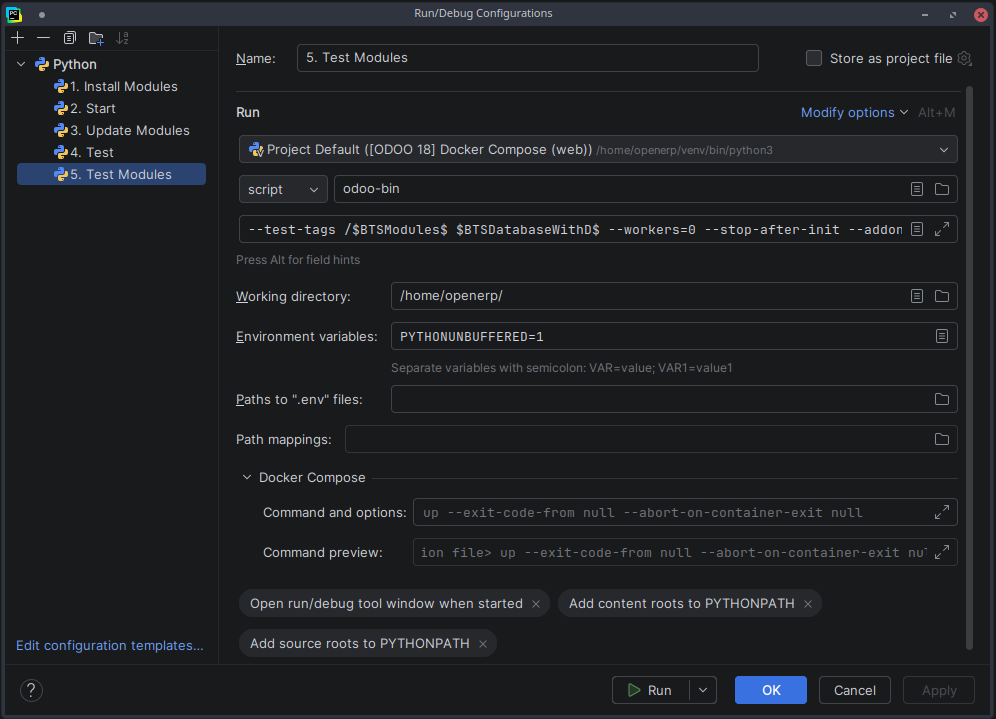
Select the modules to test, pick your database, and run. This will execute all tests in the selected modules.
--test-tags /$BTSModules$ $BTSDatabaseWithD$ --workers=0 --stop-after-init
With addons paths:
--test-tags /$BTSModules$ $BTSDatabaseWithD$ --workers=0 --stop-after-init --addons-path=$BTSAddonsPaths$
Easy Install
1. Configure your fetch database command.
- Open the Database Selector and select Configure.
- Navigate to Fetch / Drop Databases.
- Enter your fetch command in the designated field.
- Tip: Use the test function to ensure your command is working correctly.
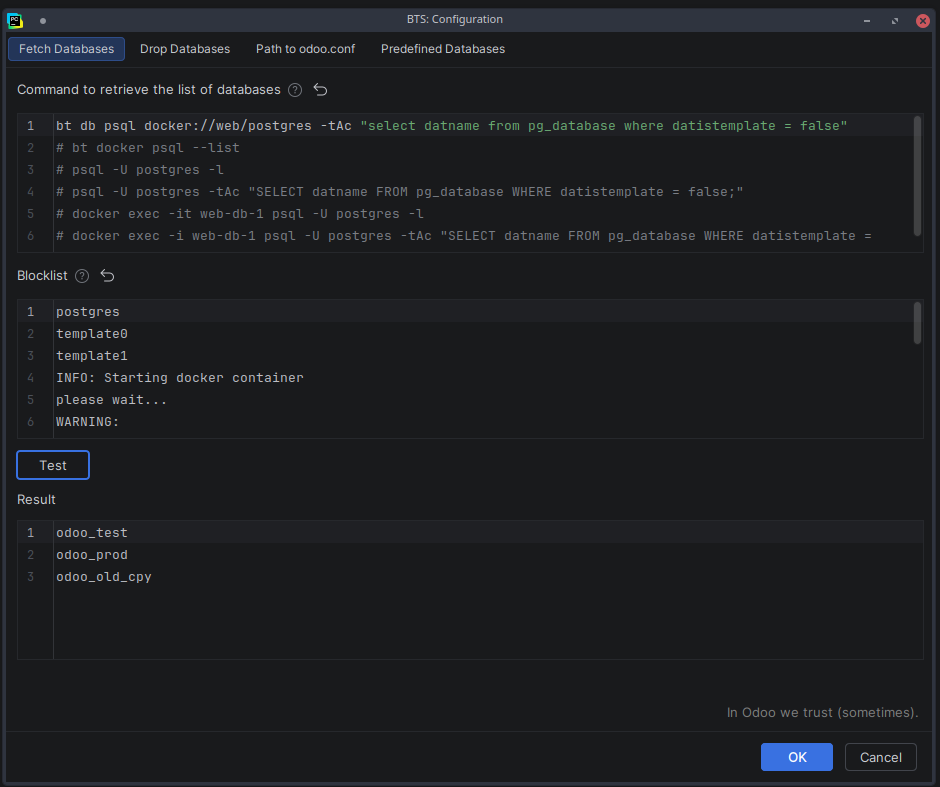
2. Auto-Generate BTS Run Configurations
- Open the Database Selector and click Generate Run Configs. This will automatically populate BTS recommended Run Configurations.
- Choose whether to include
--addons-path=$BTSAddonsPaths$to your Run Configurations. - Configuring the path to your
odoo.confis optional.
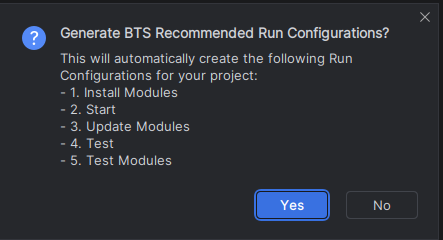
3. Adjust the newly created Run Configurations.
- For example: Specify the path to your
odoo.confor adjust other project-specific settings like working directory.
4. Congratulations! You’re ready to rock! 🎸
Braintec Automation
Braintec Exclusive
Automation & Maintenance (Auto-run)
- Automatic Cleanup – Detects and removes legacy
-web-run-containers on startup to prevent naming conflicts and environment clutter. - Update Notification – Checks for
BT pluginsupdates on startup and prompts you to update if a newer version is available. - Database Connection – Automatically configures a
BTSdatabase connection on project startup, including auto-detection of Docker container hostnames and PostgreSQL driver setup.
Repository & Submodule Management
Right-Click the main repository or the ext folder to manage dependencies:
- Update Core Repositories – Synchronizes main repositories (
odoo,enterprise, etc.) by pulling the latest changes from their tracked branches. The plugin automatically updates the corresponding commit hashes indeploy.yamlfile. - Sync Submodules –
git submodule update --init --recursive. Restores submodules to the specific commits tracked by the current project state. - Update Submodules to Latest –
git submodule update --remote. Fetches and fast-forwards all submodules in theextfolder to their latest upstream commits.
Context Menu
Braintec Exclusive
Right-Click any module to access a suite of specialized actions. Some operations may automatically trigger the installation of required bt plugins.
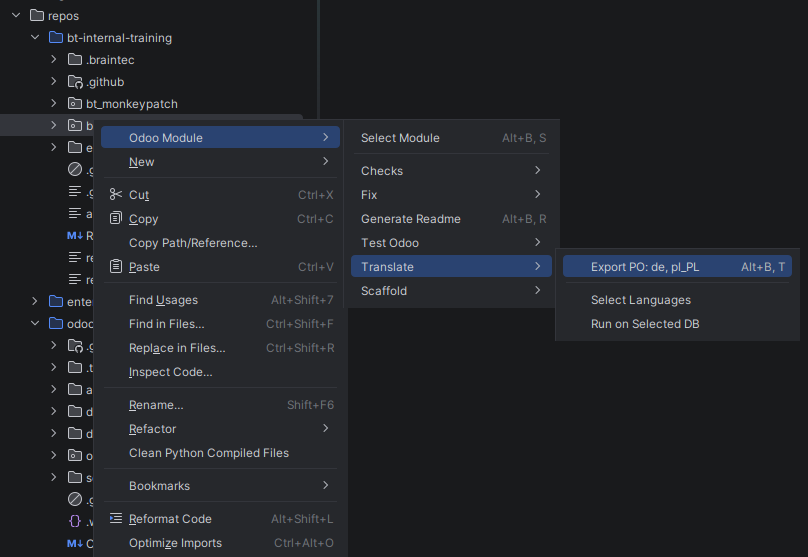
Core Actions
- Select/Unselect Module – Quickly add or remove a module from your current selection.
- Generate Readme – Execute
bt utility generate-readme. - Migrate Module – Migrate a module to the target Odoo version.
Code Analysis (Check)
- Quality & Compliance – Run static analysis for code quality, verify licenses, and audit module dependencies.
- Dependency Tree – Visualize the full hierarchy of module requirements to identify potential conflicts.
Automated Maintenance (Fixes)
- Fix PO / Ruff – Run
bt test checks-odoo-poorbt test ruff checkwith the--fixand--unsafe-fixesflags.
Odoo Testing
- Run Tests – Execute
bt test odoowith options for specific modules, project-only, or non-project modules. - Isolated Testing – Run tests for multiple modules simultaneously. Each module is executed in its own dedicated sandbox database with automatic log cleanup.
- Coverage Report – Generate a detailed coverage report during execution.
- Cleanup – Use the
Remove DBoption to delete the test database after the run.
Translation Management
- Export PO – Run
bt utility bt-translationfor specified modules and databases.- Smart Diff Notification – After export, a notification appears allowing you to instantly view all translation changes (diffs) with a single click.
- Language Selection – Define multiple languages (e.g.,
pl_PL,de,de_CH,fr,es_ES) using comma-separated values.
Scaffolding
Quickly generate Odoo components using bt utility scaffold:
- New Module – Full module scaffolding.
- Component Creators – Dedicated actions for
Controllers,Migrations,Models,Views, andWizards.
Custom Integration
EXPLORE TOGETHER
"Wanna see your workflow crack a smile?"
Need this plugin to work for your team or want custom actions built for your workflow? Let’s chat.
Tadeusz Jan Karpiński 🤙😎🤙
Changelog
[2026.5.1] - 2026-05-01
Added
- Open db query console by clicking on db name with Ctrl+Click or Ctrl+Enter. Uses the first available database connection, refreshes its database list, and syncs the schema for the clicked database.
Changed
- Braintec: Icons for submodule actions.
[2026.4.4] - 2026-04-20
Added
- Added Module Groups for easier management of multiple modules.
- Braintec: Add option to open “Left” and “Right” diff files for translations export.
- Braintec: Add new commands “Tree Dependencies” and “Start DbGate”.
- Braintec: Added actions via the ‘ext’ folder context menu: “Git Submodules: Sync with Project” and “Git Submodules: Update to Latest”.
- Braintec: Add new command “Update Core Repositories” to update odoo, enterprise and internal repositories.
- Braintec: The plugin now automatically detects and removes ghost Braintec web containers (-web-run-) on project startup.
- Braintec: Added automatic “BTS” database connection setup on project startup, including auto-detection of Docker container hostnames and driver configuration.
- Braintec: Added “Migrate Module” action.
- Braintec: Support batch “Check Dependencies” for multiple selected modules.
- Braintec: Added “Test Modules Isolated” action to run tests for multiple modules simultaneously, each in its own dedicated database with automatic log cleanup before execution.
Fixed
- Issue with starting actions for multi modules.
- Fixed an issue where background commands could not be stopped.
- Braintec: Open multi diff files for translations export.
- Braintec: Issue with diff files detection.
- Braintec: Move Check and Fix actions to Check and Fix groups.
[2026.4.2] - 2026-04-09
Added
- Official music video for “Odoo Selector Pro” theme song.
- New drop database selection dialog.
- Support for testing the “Drop Database” command.
- Option to create recommended BTS Run Configurations - with or without –addons-paths.
- Alt attributes to images in README.md to improve accessibility.
- New macro $BTSModulesWithI$.
- Braintec: Auto update BT plugins.
- Braintec: Show notification with diffs for translations export.
- Braintec: Add new command Fix Ruff Unsafe.
Changed
- Updated Gradle: 8.10.2 -> 9.4.1, Kotlin: 1.9.25 -> 2.3.20, Intellij Platform: 2.1.0 -> 2.13.1 and Jackson Dataformat XML: 2.17.0 -> 2.21.2. This optimization reduced the plugin size by ~45% (from 10 MB to 5.5 MB).
- Move texts and descriptions from plugin.xml to BtsBoundle.properties.
- Update README.
Fixed
- Helpers in configuration.
- Organize imports.
- Code Quality.
- SVG icons.
[2026.3.3] - 2026-03-25
Changed
- Renamed plugin to “BTS: Odoo Selector Pro” because “Pro” is… more pro, like iPhone Pro.
- Removed outdated teaser from description.
- Updated README.
Fixed
- Fixed issue with reading custom commands output
[2026.3.2] - 2026-03-18
Added
- Copy database and module names using Alt+Click or Alt+Enter.
- Concurrent background actions for refreshing lists, deleting/duplicating/renaming databases, with progress indication.
- Right-click on module combobox button will display modules context menu.
- Braintec: Tests and export translations can be run on the selected database.
Changed
- Improved shortcut handling and descriptions in README and plugin.xml.
- Improved shortcuts and descriptions in documentation and UI (e.g., renamed “Addons Locations” to “Addons Paths”).
- Database and module list refresh now runs in the background and does not block the UI.
- Braintec: Generating README for multiple modules now separates names with spaces instead of commas.
- Braintec: Translation export command changed from
generate-potobt-translation.
Fixed
- Fixed issue with refreshing the database list after database operations.
- Improved searching across all modules.
- Braintec: Fix issue with reading bt command output.
[2026.3.1] - 2026-03-03
Added
- Braintec: Auto-refresh project view after generating PO files.
[2026.02.3] - 2026-02-18
Added
- Braintec: Add new command
generate-poto generate PO files for translations.
[2026.02.2] - 2026-02-17
Added
- Braintec: Added actions for Odoo module testing: test group, test project modules, test non-project modules, test selected modules, test with coverage, and test with database removal.
Changed
- Refactored Odoo module actions to use unified module selection (
getSelectedOdooModules), improving reliability and maintainability. - Improved shortcut handling and visibility logic for Odoo module actions.
- Braintec: Updated and streamlined scaffolding actions for Odoo modules (controller, migration, model, view, wizard).
[2026.02.1] - 2026-02-03
Changed
- Renamed plugin to “BTS: Odoo Selector AI” because slapping “AI” on it was cheaper than actually making it smarter
[2025.12.1] - 2025-12-20
Added
- Braintec: Added translation actions: “Generate PO” and “Select Languages” for Odoo modules.
Fixed
- Fixed issue with fetching database list when Odoo is running, improving reliability of database operations.
Changed
- Improved error handling and display of warnings when fetching database lists fails.
[2025.12.0] - 2025-12-02
Added
- Add new macro $BTSAddonsPaths$, which returns comma-separated list of selected addons paths.
Changed
- Refactored command invocation logic in module actions for improved consistency and maintainability.
- Enhanced macros and configuration service for better state management and usability.
- Removed redundant code and streamlined command parameters across module actions.
[2.1.76] - 2025-11-12
Added
- Duplicate and rename database actions, with new icons for UI clarity.
- New macros for database and module selection, and test targeting.
- New macro for selecting tests.
- Braintec: Expanded scaffold options for Odoo modules: controller, group, migration, model, view, wizard.
- Braintec: Installation wrapper for bt commands, ensuring automatic installation if missing.
Changed
- Split macros for more flexible usage.
- Improved command consistency and code quality across actions.
[2.1.75] - 2025-10-13
Added
- Color output for custom commands in the UI.
- Braintec: Scaffold, Check Licenses, and Check Dependencies actions for Odoo modules.
Changed
- Improved dropdown actions: selected database is highlighted, context actions reordered.
- Filtered out odoo/addons locations and renamed paths to locations for clarity.
- Enhanced search in all modules and improved detection for custom projects.
- Refactored module actions and services for better speed, reliability, and code quality.
Fixed
- Fixed issues with reopening the comboboxAction.
- Fixed code quality checks and search reliability.
[2.1.74] - 2025-10-06
Changed
- Configuration and documentation improvements.
- New documentation pictures.
[2.1.72] - 2025-10-06
Added
- Braintec: Context menu actions for Odoo modules: Check Quality, Generate Readme, Group, Select, Unselect.
- Braintec: Shortcuts for module selection: multiselect (shift), ctrl+click, ctrl+enter to jump/open module in tree view.
- Braintec: Actions: Check Quality, Generate Readme, PoFix, RuffFix, Unselect.
- Braintec: New shortcuts and context actions for Odoo modules.
Changed
- BTS Command output now shown in Run tool window instead of Terminal.
- Improved plugin.xml and macro logic.
- No longer require odoo.conf for some actions.
- Refactored services and actions for reliability.
- Refactored and improved performance of module dropdown actions.
- Improved sorting and selection logic for modules.
- Enhanced plugin.xml and helper descriptions.
- Added ActionUpdateThread.BGT for context actions.
- Improved UI and usability for module selection.
- Improved error handling and user feedback for database operations.
- Enhanced logging for better debugging and support.
- Updated README and documentation for clarity and completeness.
Fixed
- Minor fixes for database handling and macro selection.
- Fixed issues with database selection and module actions.
- Resolved conflicts with other plugins and Odoo updates.
[2.1.71] - 2025-09-23
Added
- New Modules Selector UI for improved module selection and management.
- Macros for module selection and automation.
- New and updated icons for enhanced UI clarity.
Changed
- Refactored and cleaned up code for module actions and services.
- Updated build files and documentation.
- Improved plugin.xml and configuration logic.